
How to connect AI to your business tools without giving it the keys to everything
At a recent tourism conference, someone asked how AI could work with a system such as SafetyCulture, or another business tool.
This is where things get interesting. Ask ChatGPT or Claude to write another email and you get another email. Give it permission to work inside the tools where real work happens, and it can find approved information, draft reports from live data, save documentation in the right folder or complete the repetitive jobs nobody is going to miss.
It can also wander into places it has no business being, or change something you never meant it to touch.
If you are new to this technology, my rule is simple: start with one small job, read-only access and a human checking the AI's work.
That is enough to learn whether a connection between AI and your business tools is worth it.
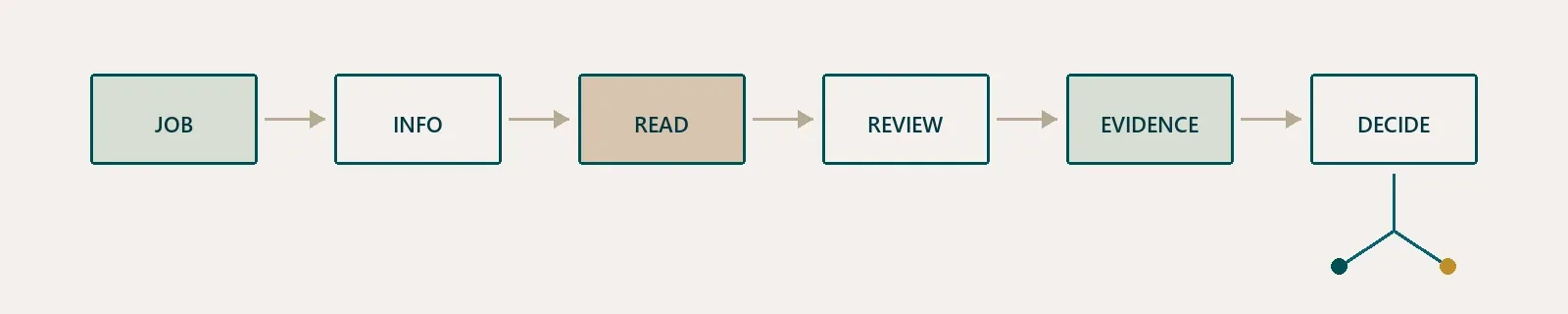
Before connecting anything, answer four questions
- What is the job? Pick one task, not an entire department.
- What does it need? Be clear about what the AI needs to see and what stays off limits.
- Can it be read-only? Limit it to one specific source wherever possible.
- Who is accountable? Name the person who will review the result and stop the connection if something looks wrong.
Your AI needs a boss. If nobody is responsible for checking its work, do not connect it yet.
What is an AI connector?
Connector is a slightly technical word for letting AI work with information or functions in another system, such as Microsoft 365, Google Drive, a booking platform, customer feedback software, graphic design apps or your website.
Unfortunately the naming is needlessly messy (standard in AI). ChatGPT calls them apps, while Claude calls them connectors. Same basic idea. Some only read information. Others can create, change or send things, so check what is included before you approve anything.
Many connectors use an API behind the scenes, although not all do. This is another one of those terms that makes this sound harder than it is. Think of it as a controlled door between two systems. You need to know what can pass through that door and what the AI is allowed to do once it gets there.
Four ways AI can work with another system
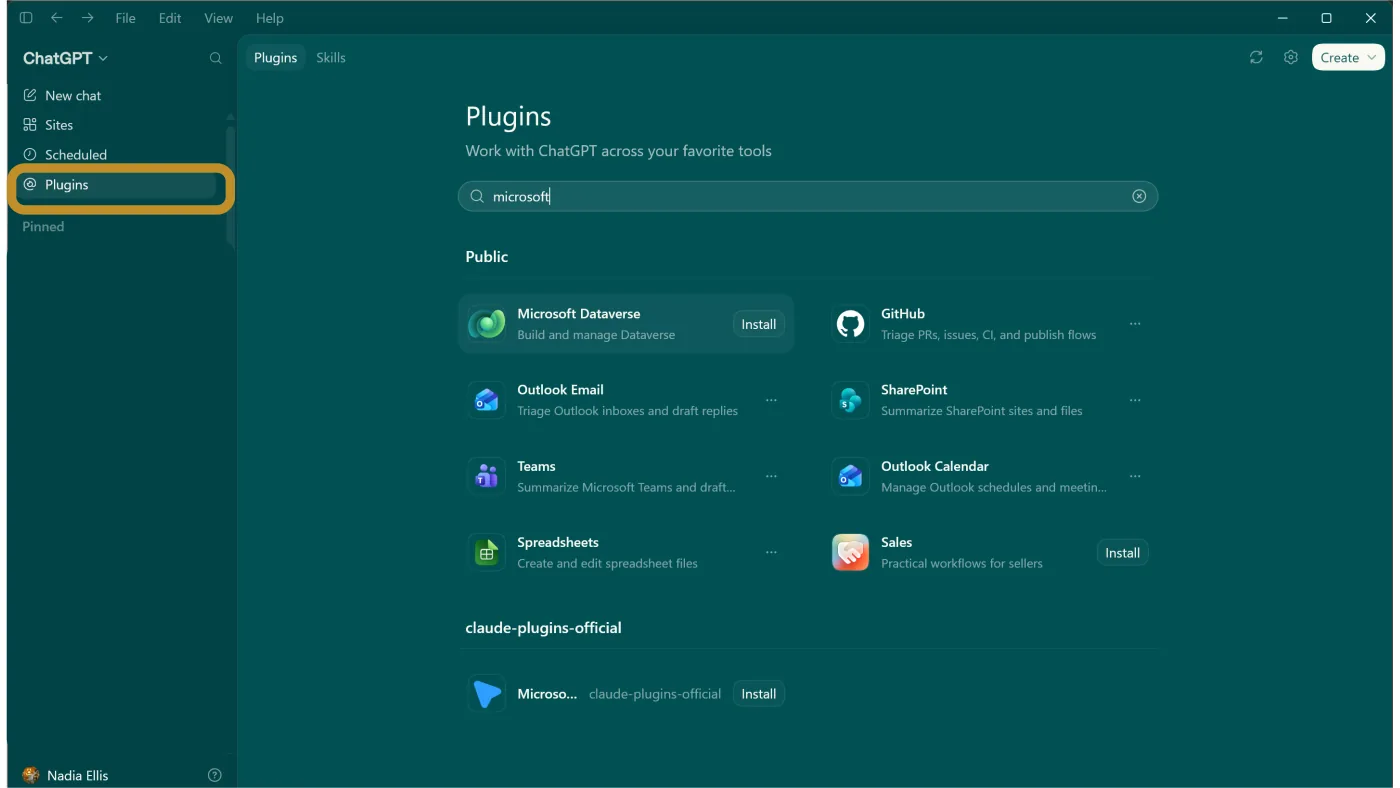
1. Use a built-in connection
Some AI platforms provide ready-made connections to common business services. Start here if the option exists. It is usually the least fiddly route.
A good first test is to let AI search one specific folder of current, approved operating procedures and draft an answer for a person to verify.
Use the official ChatGPT Plugins directory or follow Claude's instructions for browsing connectors. Random download links are not the place for optimism. Treat each connection like any other new piece of business software.
2. Build a connection with an API
If there is no ready-made connection and your business system has an API, a developer, software supplier or integration partner may be able to build one. For example, SafetyCulture provides an API that can retrieve inspection data and support defined workflows.
I would get comfortable with official connections from platforms you already use before paying anyone for a bespoke build. It is still worth knowing the option exists.
3. Let AI use a browser
AI tools can now use a browser directly. They can navigate websites, follow links, enter information and complete web-based tasks. It is very handy, and slightly unnerving the first time you watch it happen.
Some browser tools only work on public pages. Others can use a browser where you are already signed in. In that case, the AI may be able to see or change anything the active account can access.
These agents take instructions very literally and do not always behave how you expect. Dip your toe in the water with a low-risk task, such as comparing supplier information or checking availability. If you experiment inside an online system, allow only the websites required and keep manual approval turned on. One of my favourite use cases is preparing an expense entry from a receipt, with me checking the final amount and pressing submit.
Be warned.. a webpage can also contain instructions designed to mislead an AI. If it goes off piste, opens an unexpected site or asks for passwords, payment details or security codes, stop it.
4. Let AI use your computer
Browser use gives AI a window. Computer use hands it the mouse.
ChatGPT or Claude can see a desktop app, move the cursor, click buttons, type and do the repetitive work itself. That is handy for older software with no suitable connector or API, although it needs much closer supervision.
How do you stay in control?
- Approve only the applications needed for the task.
- Stop the task or take back control at any time.
- Remember that a signed-in account may expose everything that account can access.
Treat it like lending your mouse to a very capable colleague who takes instructions literally. Give it one clear job, keep sensitive information away, and keep an eye on what it does.
Computer use is improving quickly, although it still feels experimental. If you are curious, run one small, supervised task so you can see what it does well and where it gets weird. Keep guest communications, payments, bookings, safety records and other hard-to-reverse actions out of the first experiment. This is not the moment for “let's see what happens”.
Built-in connection
First test Search one approved folder.
Oversight Review the answer.
API connection
First test Retrieve defined inspection data.
Oversight Get technical setup.
Browser use
First test Compare supplier information.
Oversight Watch each step.
Computer use
First test Try one repetitive desktop task.
Oversight Stay in control.
How to lower the risk: give AI only what the job requires
If all of this sounds great, take a breath. This is where a handy little experiment can turn into “why the hell can it see the salary folder?”
Move slowly. Do not give AI access to information or actions it does not need.
In practice:
- Use a defined folder, project or set of records instead of an entire drive.
- Begin with read-only access.
- Use a test account or test environment where possible.
- Name the person responsible for checking guest-facing messages, staff decisions, financial activity, bookings, safety records and published information.
- Check the provider's data controls before connecting business information.
- Remove connections that are no longer being used.
The AI tool's permissions are only part of the story. The business system you connect it to also controls what the AI can see and do, based on the account used to approve the connection.
Connecting Microsoft 365
AI is great at finding files. That is brilliant right up until it finds the board papers or salary folder nobody realised half the business could access.
Again, start small with one pilot user whose SharePoint access has been reviewed. Claude uses the access that person already has and cannot currently limit a SharePoint search to one site. ChatGPT also supports a one-user pilot. Some Enterprise and Education setups let an administrator limit which sites and folders are included.
Ask your Microsoft 365 administrator to begin with read-only access and restrict the connection to the pilot user where the platform allows it. Test one file the person should find and one they should not. If restricted content appears, stop. That is the test doing its job.
Where to get started
Pick something repetitive, boring and easy to check. Perfect.
For a holiday park or tourism operator, that might mean putting approved weather, local-event and road-update sources in a defined folder or list. Ask AI to draft a weekend guest update with links to every source. A team member checks the facts, tone and links before the draft goes anywhere.
Then assess:
- Could the reviewer trace every important statement to a source?
- What errors or gaps appeared?
- Did the AI have access to anything it did not need?
- Is there a clear case for expanding the connection?
That evidence is more valuable than a supplier telling you its product is “AI-ready”.
When you need your IT provider or software supplier
This is where I want to be quite specific. Do not hand your provider an open brief that says “make us AI-ready”. That is how a small test grows legs, a steering committee and an impressive invoice.
Give them a bounded request:
Only involve your IT provider or software supplier when:
- the setup requires administrator approval
- you cannot confirm what the pilot user can access
- the AI will create, change, send or delete information
- the test involves sensitive customer, employee, payment or health and safety information
You decide the business task first. Their role is to confirm the access and enable a bounded test. Some providers are understandably keen to help businesses explore AI through an 'AI Audit / Strategy / Governance / Security' report. Before engaging one, check what experience they have across the wider AI landscape. Some MSPs are most familiar with Microsoft solutions and may naturally recommend staying within that ecosystem, where they can provide ongoing support. This may not be the most effective or cost-efficient tool for your business
Start with the job, not the connector
A connection is worthwhile when it improves a real piece of work and gives your team a result they can verify.
Pick one job. Lock down the access. Name the human. See if it works.
More access is something the AI earns.
Sources and further reading
- OpenAI: Apps in ChatGPT
- OpenAI: SharePoint app in ChatGPT
- OpenAI: Using cloud browser in ChatGPT
- OpenAI: Using the built-in browser in the ChatGPT desktop app
- OpenAI: Data Controls FAQ
- Anthropic: Browse skills, connectors and plugins
- Anthropic: Get started with Claude in Chrome
- Anthropic: Set up the Microsoft 365 connector
- Anthropic: Computer use tool
- SafetyCulture: API introduction