
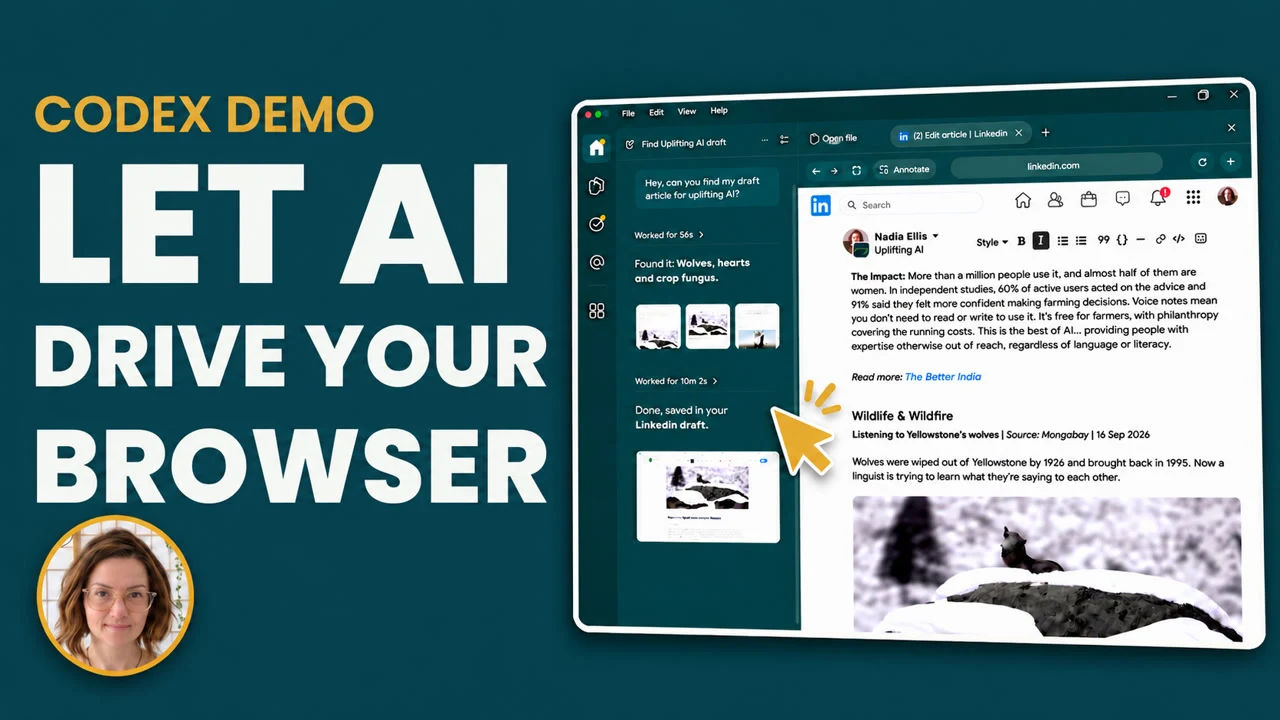
Honestly, I think one of the most underrated AI features I’ve found is the built-in browser in the OpenAI Codex desktop app. Don’t be afraid of the name. It’s for knowledge work too (this also works in ChatGPT Work).
I use it for… well, pretty much everything. But especially for the type of work that comes with a lot of clicking around: finding something, moving things, fixing formatting, and filling in forms. Like, seriously, UX is painful on most apps you don’t use all the time.
Watching the mouse move by itself is strangely satisfying. Actually magical.
Codex can find its way around apps
One of my favourite examples is getting my Uplifting AI newsletter ready in LinkedIn.
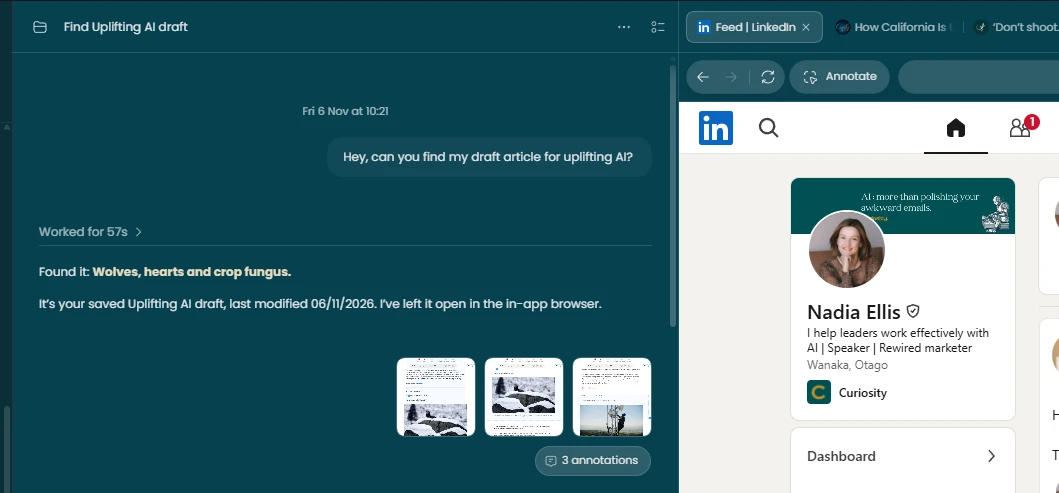
I’d written the content and checked it. I needed to sort out the layout, and first I had to find the draft. Every time I go looking for one, there’s a reasonable chance (99.9%) I’ve forgotten where it lives.
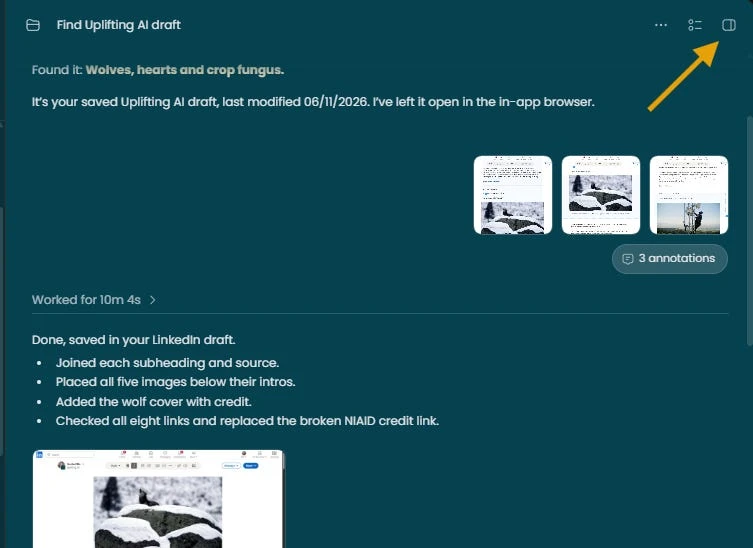
So I asked Codex: “Hey, can you find my draft article for Uplifting AI?”
LinkedIn was already open in the built-in browser. The agent clicked through the platform and found Wolves, hearts and crop fungus. A perfectly normal newsletter title.
The annotations are particularly good
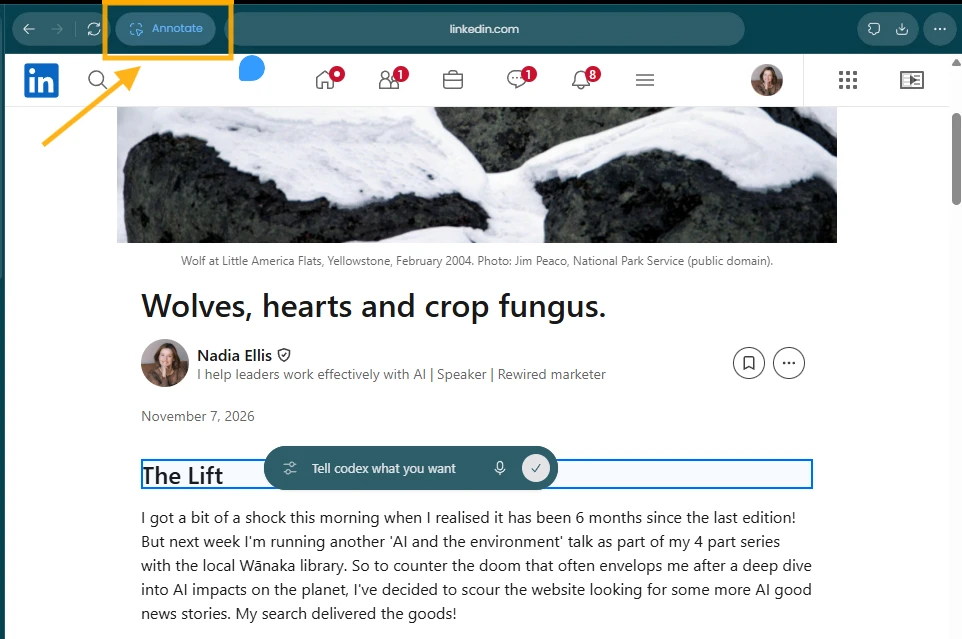
The part I really like is being able to point at the screen and explain what I want changed.
I used annotations to mark the relevant areas and describe the changes:
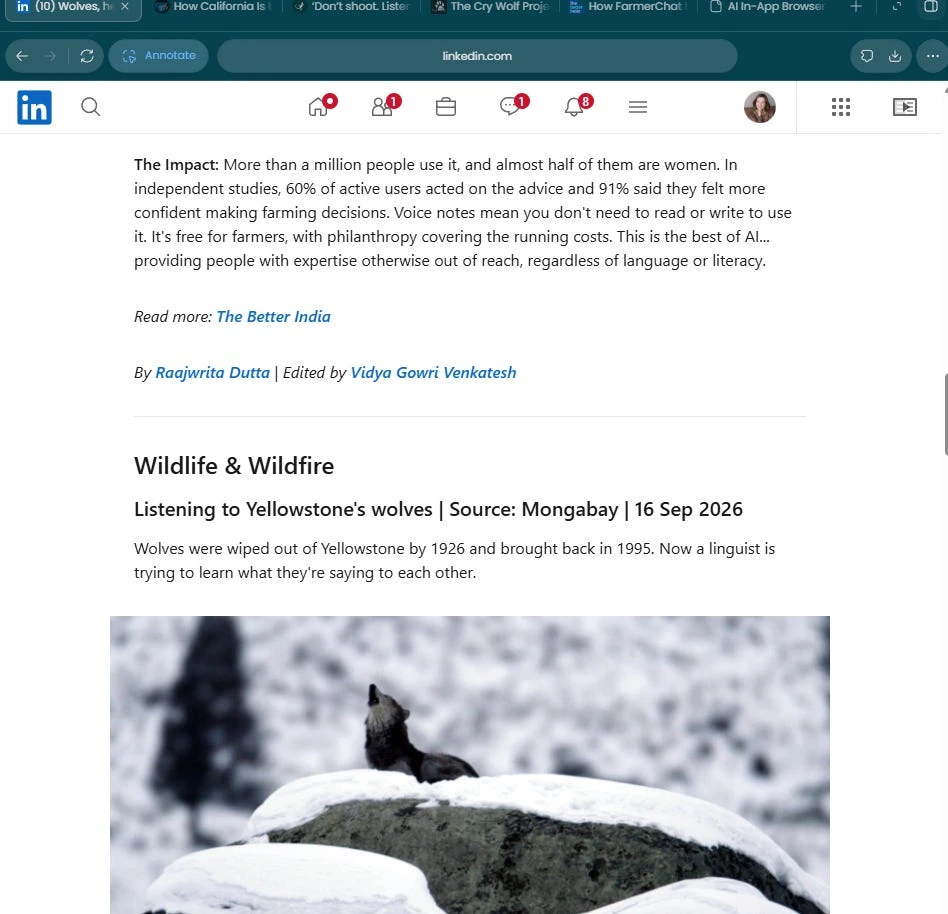
- Put the source on the same line as the subheading.
- Move the image underneath the section introduction.
- Apply the same changes across the entire article.
It’s a natural way to give feedback. I don’t need to know what the editor calls a particular element or write a lengthy description of where it sits. I can show it.
It gives me time back
This is the main reason I like it: while it worked through those edits, I could get on with something else (that was less boring). Usually, Codex works at a roughly similar speed to a human (except it knows how to do everything). It took over 10 minutes. Which was totally fine by me. The tool hit a snag during the task and worked through it. But if it gets properly stuck it will ask for approval or help.
At the end, the agent reported that the edits were done and it had replaced a broken image-credit link. I still review the result before hitting publish (obviously) and I was happy to put my name on it.
The demo above includes the annotations, the edits and where I opened the browser in my desktop app. The waiting sections are sped up.
Where to start.
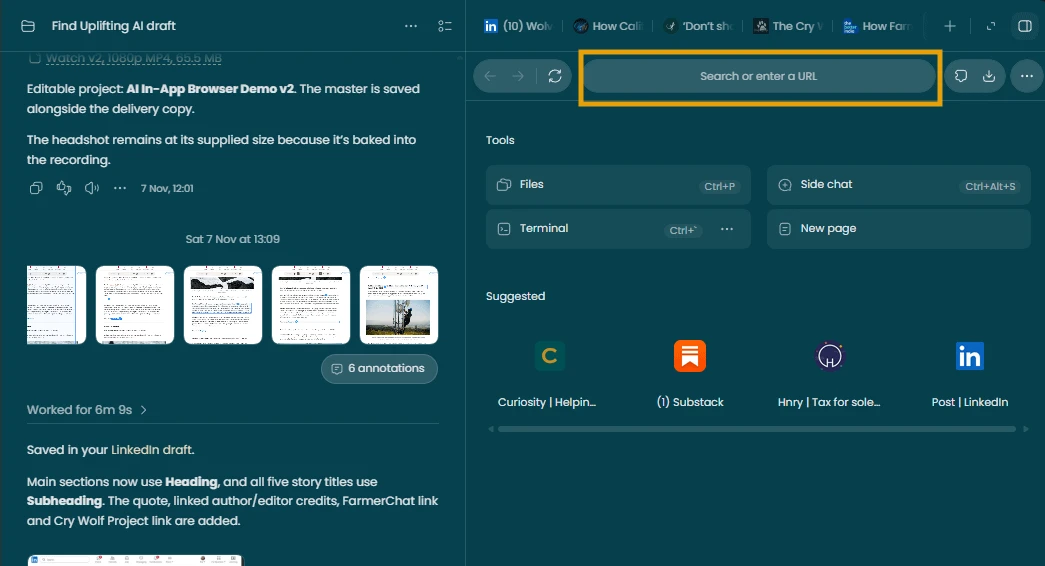
Whilst you’re building trust use a browser task that you understand well, with a result that is low risk and easy to check. I find the built in browser preferable to the chrome extension as it easier to keep an eye on it.
As per… all these cool features are hiding behind three-dot menus. There’s some very handy functionality hiding in the nooks and crannies. It is always worth your time to have a click around.
Hope this helps!
Nadia x
Context Please
AI tools, tips, and hot takes from the messy middle. New posts from Nadia, straight to your inbox.
Written by Nadia Ellis, founder of Curiosity.
Originally published on Context Please, 18/11/2026.